

A terminal editor is useful when you need to change a plain-text file without leaving a shell or an SSH session. Micro provides familiar editing shortcuts, help, syntax highlighting and split views, but its terminal, clipboard and recovery behavior still need checking. This original guide by Sushil Kumar Sah follows one disposable notes file from installation through saving, search and recovery planning. AltStack reviewed the official README, release information, MIT license and embedded help on October 28, 2026. The current latest stable release observed was 2.0.15. AltStack did not install Micro, run it, execute any installation or example command, or test crash recovery; the steps below are a documentation-based walkthrough for your own evaluation.
What is free, and which editing tasks fit Micro?
Micro edits text in a terminal. It is a useful option for notes, source files and small configuration changes, including files on a machine you access over SSH. It can cover selected editing tasks you might perform in Sublime Text, while presenting a terminal workflow rather than the same graphical workspace, project tools or package ecosystem. Start with an ordinary text file; do not begin with the only copy of a production configuration.
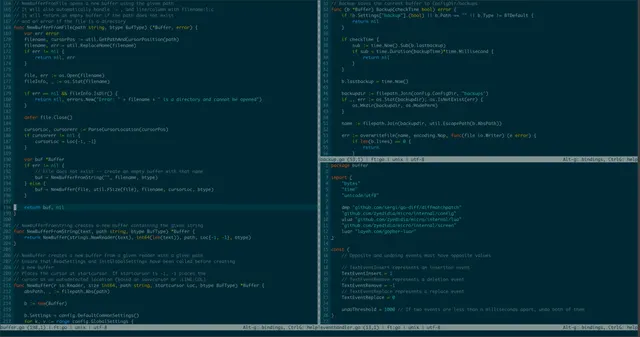
The editor is MIT-licensed software with no required editor subscription. Your computer, terminal, storage, network connection and any separately managed SSH host remain your responsibility and may cost money. A core editor download does not include a hosted development environment, cloud backup, paid support or every third-party plugin. Keep the license and project notices with redistributed copies. This guide uses the existing local upstream screenshot, which shows Micro editing its own source code in a historical layout; it is not a capture of AltStack running these steps.
Choose one supported installation route
Open the current official release page and choose a stable archive for your operating system and CPU architecture. The reviewed 2.0.15 release includes Linux, Windows, macOS and several BSD builds, with architecture-specific filenames. For example, macos-arm64 targets Apple Silicon and win-arm64 targets Windows ARM64; a package labelled win64 or linux64 is a different build. Review the matching release's checksum information, extract the chosen archive with your operating system's normal archive tool, and keep the executable in a folder you control. If you want to launch it by name from any folder, its directory must be on your command path.
If you already use a package manager, the provider documents brew install micro on macOS, apt install micro for Debian/Ubuntu, dnf install micro for Fedora and pacman -S micro for Arch. Windows options include scoop install micro, choco install micro and winget install zyedidia.micro. These are alternative routes, not a sequence; use your package manager's normal permission requirements. Distribution packages can lag behind upstream, so record the installed version. The README also links a third-party quick-install script; it is not required for this exercise.
Check the terminal and version before editing
At a shell prompt, micro -version reports the installed editor version. The hyphen and option spelling are those documented by Micro. A command-not-found message means you should check the selected installation and executable path before following editor shortcuts. The current upstream latest release and your installed package can differ; the installed editor's own help is the appropriate reference for its behavior.
Windows is supported, but the README does not officially support Cygwin, MinGW or Plan 9. It recommends Windows Terminal for WSL. On macOS, Micro's editor bindings use Control and Alt/Option, not Command. A terminal can consume Option combinations before Micro receives them; follow the provider's Option/Meta guidance for your terminal version. Do not assume a key sequence listed for one terminal is available in another. You can complete the basic exercise with Control shortcuts and the command bar even if an optional Alt binding needs attention.
Open a disposable file and learn the command bar
Choose a scratch folder that you can write to and a filename that does not already contain important work. From that folder, the documented form micro micro-practice.txt opens the named file for editing. Running micro without a filename opens an empty buffer instead. For this exercise, keep the named file so it is clear where the first save should go. Move with the arrow keys, or use the mouse if the terminal passes mouse events.
Press Ctrl-e to open Micro's command bar, type help and press Enter. The greater-than sign shown in upstream examples represents that prompt; do not type it as part of the command and do not enter these editor commands at your shell. Type help defaultkeys for the default shortcut list or help commands for command names. Help opens a split: Ctrl-w cycles between splits, so return to the notes buffer before typing practice text. Check the active filename before saving or closing a split.
Save a first note, quit and reopen the same file
In the practice buffer, type four separate lines: Title: terminal practice; Status: draft; Task: review the draft; Next: save and reopen. The semicolons here separate the instructions; use Enter between the lines in the editor. This is an original harmless exercise, not a file supplied by Micro. Press Ctrl-s to save the current file. The command-bar equivalent is save. If you started with an unnamed buffer, Ctrl-e followed by save micro-practice.txt and Enter gives it a destination.
Press Ctrl-q to close the current file; closing the last file quits Micro. Resolve any unsaved-change question deliberately rather than assuming quit also saves. Back at the shell, open micro micro-practice.txt again and compare the four lines with what you entered. This reopen check distinguishes a saved file from text that existed only in an editing buffer. If the save fails, retain the buffer and use save micro-practice-copy.txt in a writable location. Review the error and destination before granting elevated access.
Find text and make one reversible edit
Press Ctrl-f, enter draft and press Enter to finish the search prompt. The exercise contains that word twice. From the main editing buffer, Ctrl-n moves to the next result and Ctrl-p to the previous result; the help specifically distinguishes these actions from keys pressed while the search prompt is still open. For this first search, use the plain word rather than punctuation whose regular-expression meaning might be unexpected.
Use the arrows to change only the Status line from draft to ready, then save. Ctrl-z is the default Undo binding and Ctrl-y is Redo; use them on a disposable change while learning. A shortcut can be rebound, so use the installed help if your result differs. Close and reopen the file to confirm the Status line is ready while the Task line still says draft. Avoid replacing every occurrence merely to update one field: the documented replaceall command performs replacements without confirmation. Make a separate copy before attempting a wider replacement.
Keep an independent copy before a larger change
After the saved file passes the reopen check, use your normal file manager or established backup workflow to make a separate copy before a larger edit. Give it a meaningful name such as micro-practice-before-rewrite.txt and confirm that both files are present. If you use Micro's command-bar save with another filename, that is a Save As operation for the current buffer; check which filename is now active before continuing. An additional saved name is useful, but a copy on the same device is not protection from losing that device.
For files that matter, retain the previous working version in your normal backup or version-control process. Micro's Undo, crash-recovery copies and ordinary saved document solve different problems. A successful Ctrl-s writes the current document; it does not establish that a separate backup system received it. Test the restore path for your actual backup service independently. This guide does not claim that AltStack performed a restore, created a repository commit or verified a particular backup provider.
Understand recovery files before depending on them
Micro's documented backup option defaults to true. For modified, named text buffers, it writes recovery copies periodically, described in the help as every eight seconds or when a crash is detected. An unnamed scratch buffer does not have the same backup eligibility, so give important work a filename. The default backupdir value is an empty string, selecting the backups subdirectory of Micro's configuration directory: ~/.config/micro/backups with the default location. Ordinary recovery copies are removed when a buffer closes cleanly. They are not permanent file history, and the interval does not promise that every keystroke survived a failure.
If reopening a file reports a detected backup, read the displayed original path, backup path and creation time. The stable source defines three prompt choices: recover applies the backup as unsaved buffer changes; ignore discards and removes it; abort cancels that open operation and opens an empty buffer. Preserve the candidate files before choosing, especially before ignoring the only recovery copy. Save and independently check recovered text before treating it as restored. The permbackup option instead retains backups after clean closes and does not automatically apply them to existing files. Inspect show backup, show backupdir and show permbackup in the command bar; AltStack did not test a crash or recovery.
Find the real configuration directory and change one option
The documented directory precedence is MICRO_CONFIG_HOME, then XDG_CONFIG_HOME with /micro appended, then ~/.config/micro when neither environment variable is set. The tilde denotes your home directory; use your actual environment rather than assuming Micro uses a macOS Library or Windows AppData folder. The help uses ~/.config/micro as shorthand even when an override points elsewhere. The main files are settings.json and bindings.json inside that effective directory. Back up the existing files before replacing them.
For a temporary display adjustment in the active notes buffer, enter setlocal softwrap true in the command bar. It changes how long lines are displayed without inserting new line breaks into the file, and the local setting is not saved to settings.json. A global command such as set tabsize 4 updates the setting and persists it there. Use show tabsize or show autosave to inspect values before changing them. Autosave defaults to 0, meaning disabled; enabling it writes without the normal prompt and also changes how a modified buffer is handled when quitting. Do not enable it merely to test recovery backups.
Review local history and plugins before sensitive files
Editing a local file does not make every surrounding tool private. Recovery copies contain editing data. The documented savehistory option defaults to true and stores command history in the configuration directory's buffers/history file. saveundo and savecursor default to false; if enabled, their retained information is stored under buffers/. Treat these locations as part of the data you protect, including when a home directory is shared, synchronized or backed up.
Use show savehistory to inspect the current value; set savehistory false changes that policy. Do not assume changing a setting erases pre-existing copies. Plugins live under plug/ in the configuration directory and run Lua with access to editor and system functions. The plugin manager can download code, so review a plugin's source, dependencies and behavior before installing it, along with any configured linter or external command. A built-in plugin list is available through plugin list. This exercise needs no additional plugin. A local editor, remote SSH account, terminal clipboard and third-party plugin are separate parts of a privacy decision; no no-network or telemetry audit is claimed here.
Distinguish Micro's clipboard from the terminal's clipboard
The default clipboard mode is external. On Linux desktops, the README identifies xclip or xsel for X11 and wl-clipboard for Wayland; macOS uses its system clipboard tools, and Windows has a native path. If the needed integration is unavailable, the documentation describes an internal clipboard fallback. Setting clipboard to internal through the command bar keeps Micro's own copy/paste within its internal clipboard, so copying from the editor may no longer reach another application. Your terminal's separate clipboard controls still have their own behavior.
Over SSH, Micro runs on the remote machine. Its external clipboard is therefore different from the clipboard beside your local keyboard. The provider describes terminal paste and, where supported, the terminal clipboard protocol OSC 52. Terminal support and permissions vary; do not enable broader clipboard access without understanding that boundary. If a terminal paste creates unwanted indentation or closing brackets, the help documents temporarily using set paste true, performing the paste, then set paste false. These are editor commands. Try harmless text first and inspect the result before saving.
Troubleshoot missing shortcuts, poor colors or save errors
If a shortcut does nothing, inspect the active split and your terminal's own bindings before changing Micro's configuration. The keybinding documentation warns that many terminal key combinations cannot distinguish Ctrl-Shift from Ctrl; do not assume adding Shift creates a separate binding. It also documents macOS Option forwarding. Through the command bar, showkey Ctrl-s reveals the configured save binding. The raw command opens a tab showing the events Micro actually receives, which can help diagnose a terminal intercepting the key. Avoid entering private text into diagnostics that you plan to share.
If the color scheme is unreadable, the README documents set colorscheme simple for limited-color terminals. If saving fails, check the file path, directory permissions, available storage and whether the buffer is read-only. Choose a writable copy for the first task rather than reflexively approving a privileged save. If configuration changes make the editor difficult to use, keep copies of settings.json and bindings.json before restoring known values. Report a minimal harmless example, the installed Micro version, operating system and terminal, not a complete private configuration or document.
Finish with a file and recovery plan you can explain
Before moving to an important file, confirm four things in your own environment: the selected package launches, you can save and reopen a named file, search lands on the intended text, and you know where both your independent backup and Micro's recovery directory are. Record the Micro version and terminal because shortcut and clipboard behavior can differ between machines. Keep your original editing workflow available until this small task is reliable for you.
For the next session, use help options, help keybindings, help commands and help copypaste in the installed editor rather than guessing a control from the screenshot. The source image in this guide is an upstream historical example editing Micro's own code. Its split layout and theme illustrate the product; they do not establish the appearance of your version or prove that AltStack installed it. If a real recovery incident occurs, preserve the candidate files before experimenting and follow the matching version's help.
Official instructions and sources
Current official README: platform installation, version, terminal and clipboard requirementsOfficial release 2.0.15 and architecture-specific downloadsCurrent upstream MIT licenseStable embedded help: opening the command bar, saving and help splitsStable default keys: save, quit, find, next match, undo and redoStable commands: save as, inspect options, raw terminal events and pluginsStable options: configuration paths, backups, autosave, history and clipboardStable backup implementation: named-buffer eligibility and recovery prompt choicesStable keybindings: terminal modifier limits and macOS Option behaviorStable copy/paste help: local clipboard, terminal paste and SSHStable plugin documentation: local plugin files and system APIsStable configuration tutorial: persistent settings and local changesRetained local Micro artwork sources and MIT noticeOriginal AltStack guide by Sushil Kumar Sah. Installation steps follow provider documentation; they do not imply testing on every supported device.