

WinMerge is a free Windows application for inspecting differences between files and folders. It is useful when two exports, project copies or configuration files have drifted apart and you need to understand exactly what changed. Start with copied sample files, decide which side should receive a change, and review one difference at a time. This walkthrough follows the official manual and download information checked on October 27, 2026; AltStack did not install WinMerge or execute the example command.
What does WinMerge replace, and what is free?
The WinMerge application and provider downloads do not require a software subscription. Its source is distributed under the GNU GPL version 2. It covers selected file and folder comparison tasks you might otherwise perform in Beyond Compare. That does not make their supported platforms, comparison modes, automation or support identical. WinMerge’s official installers are for Windows; a Linux or Mac user should choose a tool with a supported build for that system. Your computer, storage and any backup service remain separate costs. Open the current provider download page instead of a search-result advertisement or an unrelated installer site.
How do you install the right Windows build?
On the official downloads page, choose a stable installer that matches your Windows architecture. The provider distinguishes x64, ARM64 and x86 packages, and also lists binary archives and a per-user installer. Read the requirements for that package before downloading; an old operating system’s nominal compatibility is not a recommendation to keep using an unsupported OS. Run the chosen installer according to your organization’s permissions and review optional components rather than accepting extras without a reason. Open WinMerge after installation. The provider publishes SHA-256 values for its downloads, so a file-integrity check can be compared with the value for that exact filename. This guide has not downloaded or tested an installer.
Which sample files should you prepare first?
Create two disposable folders named Before and After. Put a short settings.txt file in each: use a few ordinary lines such as a display name, an output folder and a retry count. Change just the retry count in the After copy. Add a second small file to one folder only. Keep a third untouched copy outside both folders as your recovery reference. This is an original practice exercise, not a report of an AltStack test. Do not begin with your only backup, a production configuration or a directory that another sync program is actively rewriting. Name the two sides clearly before you compare them.
How do you compare two text files?
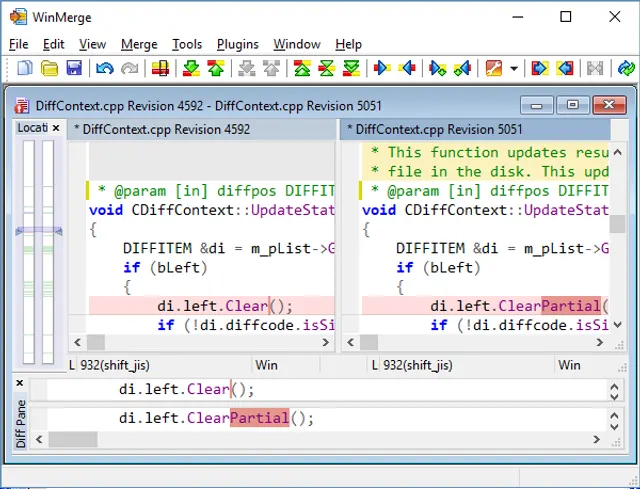
In WinMerge, choose File → Open or use Ctrl+O. Select the two settings.txt copies as the first and second inputs, then start the comparison. Both inputs should be files; do not accidentally select a directory on one side. The file view shows their contents beside each other, with changed blocks highlighted. Read the paths above the panes before interpreting the result. Several adjacent changed lines can belong to one difference block. Moving to a difference does not mean that WinMerge has decided which version is correct: that remains your decision. For this exercise, find the retry-count line and confirm that the change is the one you deliberately made.
How do you merge one intended change?
First identify the destination file by its full path, not only by the pane color or filename. Select the intended difference and use the direction-specific copy action that puts that block into the destination. Check the resulting text before saving. WinMerge’s merge actions work on difference blocks, which can contain several lines, so a word-sized highlight does not necessarily mean only one word will be copied. An asterisk in the file header indicates unsaved edits. Save deliberately, reopen the result and compare it with your untouched recovery copy if something is unexpected. For an unfamiliar action, practice on the disposable example before using it on valuable files.
How do you compare folders and include subfolders?
Return to the open dialog and choose the Before and After directories. Decide whether to include subfolders before starting: a recursive comparison examines a wider tree and can take longer. The folder view lists matching paths, differences and items present on only one side. WinMerge does not inherently know that one side is the original and the other is a newer version. A one-sided item is therefore not automatic proof of a deletion or addition you should apply. Open an individual file pair to inspect its contents. Stop after reviewing the deliberately added sample file; do not turn the first comparison into a bulk copy or cleanup operation.
How can filters make a large comparison easier to read?
Use a narrow file mask when you only need one file type. For a text-only practice directory, *.txt is a simple starting point; the manual also documents multiple masks and more advanced filter files. Check what the active filter excludes before relying on a quiet result. Hidden or skipped files have not thereby been proved equal. For file comparisons, line filters can suppress selected line differences, which is useful for deliberately variable data but can also hide a meaningful change. Record the filter and comparison settings with your review, and repeat without a custom filter when the result contradicts what you expected.
Can you open a folder comparison as read-only?
The documented command-line options include /r for recursive folder comparison and /wl and /wr to open the left and right sides as read-only. An illustrative invocation is WinMergeU /r /wl /wr "C:\CompareDemo\Before" "C:\CompareDemo\After". Use your actual paths and the installed executable location; WinMergeU must be resolvable from that command prompt, or you must supply its full path. These flags are useful for inspection, and they do not create a backup or a security boundary around the folders. No command in this guide was executed by AltStack. Avoid automatic merge flags until you have independently checked the manual and the destination behavior you need.
Do your files stay private, and what should you back up?
A local file comparison does not require uploading the two files to an AI service or a web comparison form. Still, where you store them matters: a network drive, cloud-synchronized folder or third-party plugin can introduce separate access and processing. Review those arrangements before comparing confidential material. Keep an untouched backup outside the folders you are about to merge. A comparison result is a view of selected inputs and settings at that time; it is not continuous synchronization, a full backup strategy or a guarantee that another application will not change a file later. Retain the input versions and your review notes when the merge is consequential.
Why is the comparison empty, slow or unexpectedly different?
If the comparison cannot start, check that both selected paths exist and that you selected the same kind of input on each side. If expected files are absent, inspect file masks, active filters, subfolder settings and skipped-item visibility. A large recursive tree can be slow because it contains many items; begin with a smaller directory to isolate the problem. When text looks different unexpectedly, inspect the comparison options, encoding and line-ending treatment rather than merging everything to remove highlighting. A file locked by another process may not be comparable. Treat an aborted comparison as incomplete, keep the source files, and use the relevant manual topic or provider issue tracker for the specific symptom.
What should you check before using WinMerge for regular work?
Write down the task you need: inspect two exports, review a text change, or reconcile selected files in two project folders. Keep the same small sample when comparing WinMerge with another tool. Check that the chosen release opens your real file type and that the saved output still works in the application that owns it. For a team, agree on path naming, filters and who reviews the destination before any bulk operation. The useful outcome is a change you can explain and recover from, not a screen with no highlighted differences. Use the linked official documentation for advanced formats, plugins and automation.
Official instructions and sources
Official Windows downloads, architectures and checksumsProvider quick start and input selectionProvider file comparison and merge behaviorProvider folder comparisons and result statesProvider file masks and filtersProvider command-line and read-only optionsOfficial source repository and GPL licenseOriginal AltStack guide by Sushil Kumar Sah. Installation steps follow provider documentation; they do not imply testing on every supported device.