

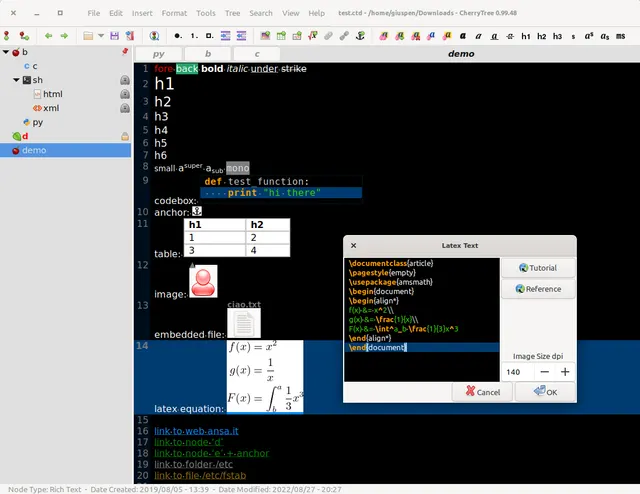
CherryTree organizes notes in a tree of pages and keeps the notebook on your computer. This guide takes you from the official Windows download to a small project notebook, an export you can share and a backup you can reopen. The workflow was checked against the provider website and the version 1.7.2 source documentation on October 17, 2026. AltStack has not installed the application or performed these exercises. The product image is an upstream demonstration of an earlier interface; use the current action names described below rather than matching every pixel of that image.
1. Decide whether a local notebook fits your work
Choose CherryTree when you want a hierarchy of research, project notes or technical references that you can keep as a desktop document. The project supplies rich-text pages, plain-text and syntax-highlighted content, images, tables and embedded files. It is free software under GPL-3.0-or-later. The official desktop downloads do not require a paid note-taking account or a model API key. Donations are optional; your computer, backup media and any separate synchronization service have their own costs.
Start with one concrete use, such as keeping a small course or project together. Write down what you need to retrieve: a decision, a source link and a short next-action list. If your main requirement is simultaneous browser editing by several people, evaluate that requirement separately before moving a shared workspace. A local notebook can replace some personal note-taking tasks without reproducing every cloud collaboration feature.
2. Download and install the current Windows package
Open the official CherryTree page and go to its download section. At review, the stable application version is 1.7.2 and the Windows installer is named cherrytree_1.7.2.1_win64_setup.exe. Choose that provider-linked 64-bit installer, download it and follow its installation prompts. Launch CherryTree from your installed applications when setup finishes. Keep the installer source and version in your notes so a later troubleshooting report identifies the actual build.
The provider also lists a portable 7z archive. Extract the whole archive before starting ucrt64/bin/cherrytree.exe. For portable configuration, its instructions place config.cfg at the archive's top level beside license.txt. Do not mix the current package with the separately listed old Python/GTK2 release. Linux and community-maintained macOS packages are linked on the same page; their package requirements differ from this Windows route.
3. Build a three-page practice tree
Begin in an empty CherryTree document. Use the Tree menu's Add Node action to create a top-level page named Practice project. Choose rich text for this first page and add a short description of what the project is for. Select that page in the tree and use Add Subnode to create a child named Sources. Create another child named Next actions. You should be able to select each page independently and recognize its place under the parent.
Put one public source URL in Sources and three small tasks in Next actions. This sample gives you content whose location and wording you already know. Keep the tree shallow while you learn it: a few meaningful pages are easier to inspect than a large imported archive. If a page appears beside its intended parent, review whether you chose the sibling-node or child-node action before adding more content.
4. Save a notebook you can find and reopen
Press Ctrl+S or use the file-save action. For this ordinary practice notebook, choose the single SQLite storage type, which uses a .ctb file. Select a writable local folder and a recognizable name such as practice-project.ctb. Keep the location in your own file-management system instead of relying on a recent-file list. Add one more sentence, save again and close the application normally. Reopen the saved notebook and confirm that all three pages and the new sentence are present.
CherryTree also offers XML, password-protected single files and a multiple-files storage option. Those are separate choices with different portability and handling considerations. Learn one format before changing an important notebook's storage. A successful save only establishes that this copy can be opened at this location; it does not create a separate backup or decide who can read the folder.
5. Add useful material without making the notebook unwieldy
Use the main page for a short project overview and put detailed references under its child pages. The insertion actions support an image, a table, a code box and an embedded file. Try a small ordinary text attachment and a small picture before importing anything important. Save the notebook, reopen it and check whether the inserted material is still accessible. For a code box, choose the appropriate syntax display and treat the content as a reference; this exercise does not require executing a command.
Give each attachment some context: what it is, where it came from and why it belongs in the notebook. Large embedded files make copying and backing up a notebook more expensive. Keep an independent original of material that would be difficult to replace. A link to an external file and an embedded copy have different lifetimes, so check the actual result rather than assuming either one follows later source-file changes.
6. Find a note by a term you already know
Put a distinctive word such as practice-orchid in the Sources page and save. Use Ctrl+Shift+F to search across multiple nodes, enter that word and run the search. Open the matching result and confirm that it leads to the expected page. Then try a term that does not exist. This makes the search behavior easier to understand than experimenting first with a large notebook whose contents are unfamiliar.
Search scope matters when a result appears to be missing: the current node, a subtree and the whole document are different boundaries. Check the selected scope and matching options before concluding that content has disappeared. Build page titles around subjects you expect to search for later. A consistent title such as a project name and a decision topic can be more useful than creating many untitled pages and depending entirely on full-text search.
7. Export a small selection for somebody else
Select the practice project and choose the appropriate PDF, HTML or plain-text export action from the export submenu. In the export dialog, review whether you are exporting the current page, its descendants or the whole tree. Choose a new destination outside the notebook folder. Open the result using a PDF reader, browser or text editor and check the selected pages, ordering, links and any included attachment references. The export is a separate deliverable to inspect before sharing.
Use a small sample to discover which format preserves the elements your reader needs. Plain text cannot carry every rich-text layout feature. An HTML export may consist of several related files, so check the whole exported folder before moving it. Keep private pages outside the selected scope and inspect the actual output: choosing a format does not automatically remove confidential sentences or filenames.
8. Make a backup and prove that it opens
Save and close the practice notebook, then copy its saved .ctb file to a separate backup destination. Name or date the backup so you can distinguish it from the active notebook. Open the copied file in CherryTree and check the parent page, both children, the distinctive search term and the small attachment. Close that copy before resuming work in the active file. This is a simple recovery exercise with an expected result, rather than assuming a file-copy notification proves the notebook is usable.
A second folder on the same disk is convenient for practice but does not protect against losing that disk. Choose an independent destination for valuable material and periodically repeat the reopen check. If you later adopt the multiple-files format, preserve the complete document directory. Keep automatic backups and synchronization policies understandable enough that you can identify which copy you would restore after an accidental edit.
9. Understand the boundary of password protection
The project offers password protection for single-file notebooks using 7-Zip. Its documented limitation is significant: while a protected document is open, CherryTree extracts an unprotected copy into a temporary filesystem folder and removes that copy when the application closes. A password-protected .ctx or .ctz file therefore does not mean its opened contents remain encrypted everywhere on the computer. The stable storage dialog also warns that an application or system crash can leave the unprotected document in that temporary folder. The multiple-files storage option is not the same password-protected format.
Before placing private information in a notebook, consider the computer account, disk protection, backup destination and any folder-synchronization service. Do not assume that a notebook password protects an exported PDF, a copied attachment or a screenshot. Try any storage-format or password change on a disposable copy first and confirm that you can reopen it. Keep recovery arrangements outside the notebook whose password they are supposed to help recover.
10. Move existing notes in small, reviewable batches
CherryTree's import actions include plain-text and HTML files or folders, alongside several application-specific formats. Before importing, create a separate practice notebook and select a small representative sample. Include one long page, one short page and any attachment pattern you depend on. Review page titles, hierarchy, text, links and attachments after import, then save, close and reopen that trial notebook. Keep the original exports until you have checked the destination and a backup.
Decide what success means before moving a large collection. Counting pages can reveal missing entries, but it will not reveal a broken link or a misplaced image. Pick a few known examples and compare their meaningful contents with the originals. Repeat the process in batches you can inspect, and maintain a short record of what moved and what still requires manual attention. Do not delete a working source collection simply because an import dialog finished.
11. Diagnose launch, save and export problems
If the portable application does not start, confirm that the complete archive was extracted and use the documented executable path inside it. For installation problems, record the package name, operating system and error text, then consult the current provider release information. CherryTree marks its old manual discontinued; instructions about installing Python 2 or old GTK dependencies describe a different release and should not be applied automatically to the current Windows package. Do not disable operating-system protections to make an unexplained download run.
For a save failure, try a small new practice notebook in a folder your account can write to and check available disk space. For an export failure, reduce the selection to one ordinary text page and inspect the error before adding attachments back. Preserve the original notebook while you investigate. When reporting a problem publicly, remove private note content, usernames, document paths and any embedded material from diagnostic examples.
12. Keep one notebook as the active working copy
After the practice exercise, create the real project notebook and keep its location unambiguous. Open the backup only for a recovery check, and give exports names that identify them as shared outputs. At the end of a work session, save the active notebook and check that your intended backup process covers it. Before an application upgrade or a substantial import, keep a separate known-working copy you can reopen.
A useful first notebook should pass a few concrete checks: the intended pages exist, a known term finds the right note, the saved document reopens, the export contains only the intended material and the backup opens independently. Record any limitation that affects your work. Completing those checks on your own installation gives you a stronger basis for adopting the application than assuming that a provider feature list or this documented walkthrough proves your files are already protected.
Official instructions and sources
Official features, free downloads and current Windows packageReviewed stable version and release notesStable feature list and temporary-file privacy limitationGPL-3.0-or-later licenseStable action names and keyboard shortcutsStorage formats and export scope choicesFile creation, save and reopen behaviorNode and child-node behaviorOriginal AltStack guide by Sushil Kumar Sah. Installation steps follow provider documentation; they do not imply testing on every supported device.