

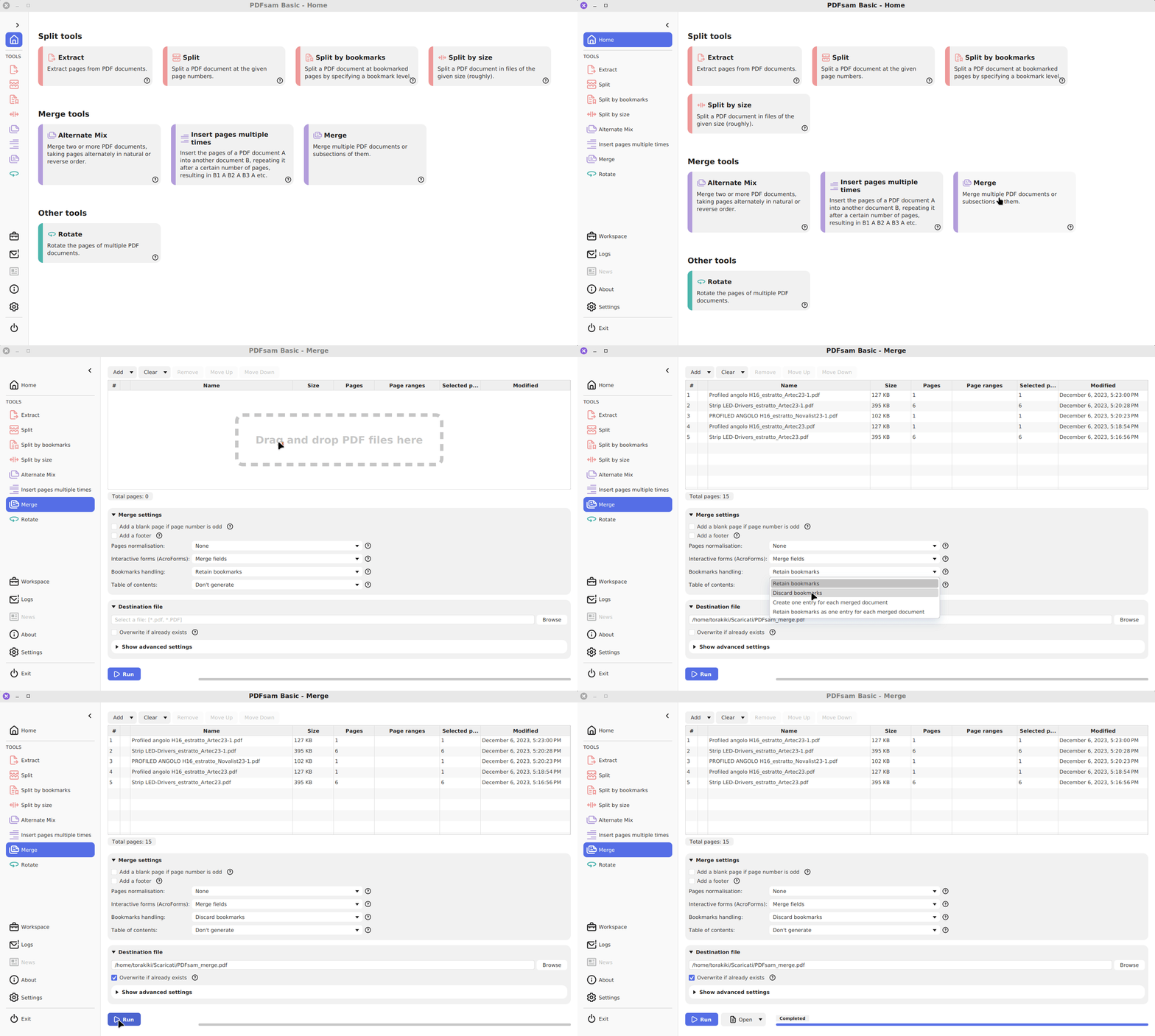
PDFsam Basic can turn several PDFs into one organized packet and produce a smaller selection when you only need a few pages. This walkthrough uses the official Windows x64 package and a small practice set, then covers rotation and two-sided scans. The software and provider documentation were reviewed on October 16, 2026. AltStack has not installed the application or performed these exercises; the steps describe the documented workflow. Use copies until you have opened and checked the results yourself.
1. Choose Basic and understand the free edition
Download PDFsam Basic for local page operations. Its AGPL-3.0 edition combines, separates, extracts, rotates and interleaves PDF pages. The provider permits personal and company use for free and states that Basic adds no watermark or software file-size limit. Large jobs still need enough memory, disk space and processing time. This workflow needs no hosted PDF account, server rental or model API key.
PDFsam Visual and PDFsam Enhanced are separate proprietary products. Their additional editing, OCR and conversion features have their own trial or payment terms. A link to try another edition does not make those features part of Basic. For this exercise you need page organization, a PDF reader for checking the output, and a few documents you are allowed to process. Optional donations and any later storage or sharing service are separate costs.
2. Install the official Windows x64 package
Open the official PDFsam Basic download page. At review it lists version 6.0.6. Under Windows, select the 64-bit MSI installer; its linked filename is pdfsam-basic-6.0.6-windows-x64.msi. Download it from the provider-linked GitHub release, open it and follow Windows Installer’s prompts until installation finishes. Then launch PDFsam Basic from your installed applications. The current Windows release needs Windows 10 or later on a 64-bit system.
The provider also offers a portable Windows ZIP. Current Basic releases bundle Java, so you do not need to install a separate Java runtime for this route. The Windows downloader is another documented option and can offer PDFsam Enhanced; review that optional offer separately. macOS users should select the Intel or ARM disk image matching their machine, and Linux users should use the documented DEB or portable archive. Those are different packages from the Windows MSI.
3. Prepare a packet with a result you can count
Create a practice folder with two existing PDFs and a separate output folder. Use an ordinary three-page document as A and a two-page document as B. Check their pages in a PDF reader first and write down the intended order: A1, A2, A3, B1, B2. You now have an expected five-page result that can reveal an ordering error immediately. If your sample has different lengths, write its expected page list before continuing.
Keep the source filenames distinct from every generated output. A name such as practice-packet-v1.pdf helps distinguish the first attempt from later corrections. Choose a destination you can write to and find again. Keep important originals in their existing backup arrangement. A successful operation creates an output to review; it does not establish that every original page was the right material to include.
4. Merge the documents into one PDF
In Basic, open Merge and add the two practice PDFs by dragging them into the input list. Put A before B and review the order in the list. Choose a new resulting PDF filename in the output folder, then select Run. Wait for completion before opening or moving the output. Open it in your PDF reader and compare its five pages against the expected order from the previous step.
For later jobs, Basic can combine only selected pages from each input, preserve or reorganize bookmarks, and handle form-related merge settings. Start with whole documents and ordinary defaults so the first result is easy to judge. Change one option at a time on another copy when those features matter. For a packet with forms or bookmarks, check those elements in the intended reader as well as checking the visible pages.
5. Extract the pages you want to share
Open Extract and add the combined practice packet. Enter a selection such as 2,4-5, then choose a separate destination and run the operation. In the five-page example, the intended result contains A2 followed by B1 and B2. Reopen it and confirm that it has three pages with the expected content. PDFsam also supports an open-ended selection such as 4- and the last keyword for the final page.
The extraction tool can place selected ranges into one document or produce a separate file for each range. Decide which output you need before running a larger selection. Page numbers refer to positions in the PDF, which may differ from numbers printed on a cover, index or chapter page. Count from the beginning in your reader and check the actual content. Extracting a page retains that page’s content; it does not redact private information inside it.
6. Split a packet into manageable parts
Use the ordinary Split tool when you want to divide the whole packet at specified positions or after a fixed number of pages. With the five-page practice file, splitting every two pages should produce parts with two, two and one page. Select the relevant split method, set its options, choose the output folder and select Run. Check the number of files and open every part before using the same settings on a larger document.
Basic also has splitting by bookmark level and by target size. Bookmark splitting depends on a useful bookmark tree in the input. Size splitting is approximate, so inspect each resulting file against the actual upload or email limit. Splitting does not promise smaller images or an exact compression ratio. Keep the original packet while you determine whether the resulting parts meet the recipient’s needs.
7. Correct sideways or upside-down pages
Choose Rotate and add the PDF that needs an orientation correction. Select the affected page range, or all, even or odd pages when that matches the problem, and choose the angle. Basic supports rotations of 90, 180 and 270 degrees. Save to a new output location and run the task. Reopen the saved file to confirm that the change persists outside the application.
Try the correction on one known sideways page first. A wrong direction is easy to spot in a small sample and confusing in a batch. Check that portrait pages remain readable and that the selection did not rotate pages that were already correct. A rotation changes page orientation; it does not repair blurry text, straighten every skewed scan or add searchable text to an image-only document.
8. Reassemble front and back scans with Alternate Mix
If a single-sided scanner produces one PDF of the fronts and another of the backs, choose Alternate Mix. Add the two files in the intended sequence and use a pace of one page from each input for ordinary front/back interleaving. Enable Reverse for an input only when its pages were scanned in reverse order. Choose an output path and select Run.
For a six-page example, one input might contain original pages 1,3,5 and the other 6,4,2. Reversing the second input should give the intended sequence 1,2,3,4,5,6. Write down your actual sequence rather than assuming this example matches your scanner. Check the beginning, middle and end of the output, including any blank pages. Missing or extra scanned pages can shift the pairing even when the software follows the selected settings correctly.
9. Review the final packet and its privacy boundary
Open the final PDF in the reader your recipient will use. Check page count, order, orientation, small text, bookmarks and any forms that matter. Search for a known word if searchable text is part of your requirement. Keep the original inputs until that review is complete. When you make another correction, use a new output name so you can identify which version you actually approved.
The provider says Basic processes PDFs locally without uploading their content to a server. Your destination folder still matters: a separate synchronization or backup application may copy it elsewhere. Review that service’s access settings before placing private documents there. Local processing also does not remove sensitive text or metadata from a PDF. For a document that needs redaction, use a tool with a documented redaction workflow and verify the result before sharing.
10. Save repeatable settings with a workspace
After a practice job produces the expected result, use Basic’s workspace feature to save the tool configuration for a recurring task. The provider documents restoring saved configurations and selecting one to load when the application starts. Give each workspace a purpose you will recognize, such as a monthly packet, and maintain separate backups of the PDF source documents and accepted outputs.
Review a restored configuration before each run, especially input selection, ranges and destination. A previous month’s correct settings can be wrong when a new document has a different cover or page count. Record the checks that define success for the job: the expected total, which source begins each section, and any form or bookmark checks. A workspace reduces repeated setup; your final document review remains a separate step.
11. Diagnose a failed job without losing the originals
If installation or launch fails, confirm that you downloaded the Basic package for your operating system and architecture. Current packaged releases include Java; an older tutorial asking for a separate Java 8 installation describes a different release. For an operation failure, retain the error text and version number. Retry with a small ordinary PDF in a writable local folder to separate a general setup problem from one input or destination.
For a large job that reports a memory error, consult the provider’s memory troubleshooting page. It distinguishes Map failed from Java heap space, and its configuration edits are explicitly written for versions 4 and 5. Do not assume those file paths or memory settings apply unchanged to version 6. Keep the original inputs, check available resources and seek current guidance for the exact error. Remove private filenames and document content before posting diagnostic material publicly.
Official instructions and sources
PDFsam Basic features and local processingOfficial downloads and current system requirementsBasic, Visual and Enhanced differences and free-edition termsMerge workflowExtract selected pagesSplit by pages, size and bookmarksRotate PDF pagesInterleave scanned fronts and backsSave and restore workspace settingsMemory errors and version-specific troubleshootingReviewed source and AGPL-3.0 licenseOriginal AltStack guide by Sushil Kumar Sah. Installation steps follow provider documentation; they do not imply testing on every supported device.