

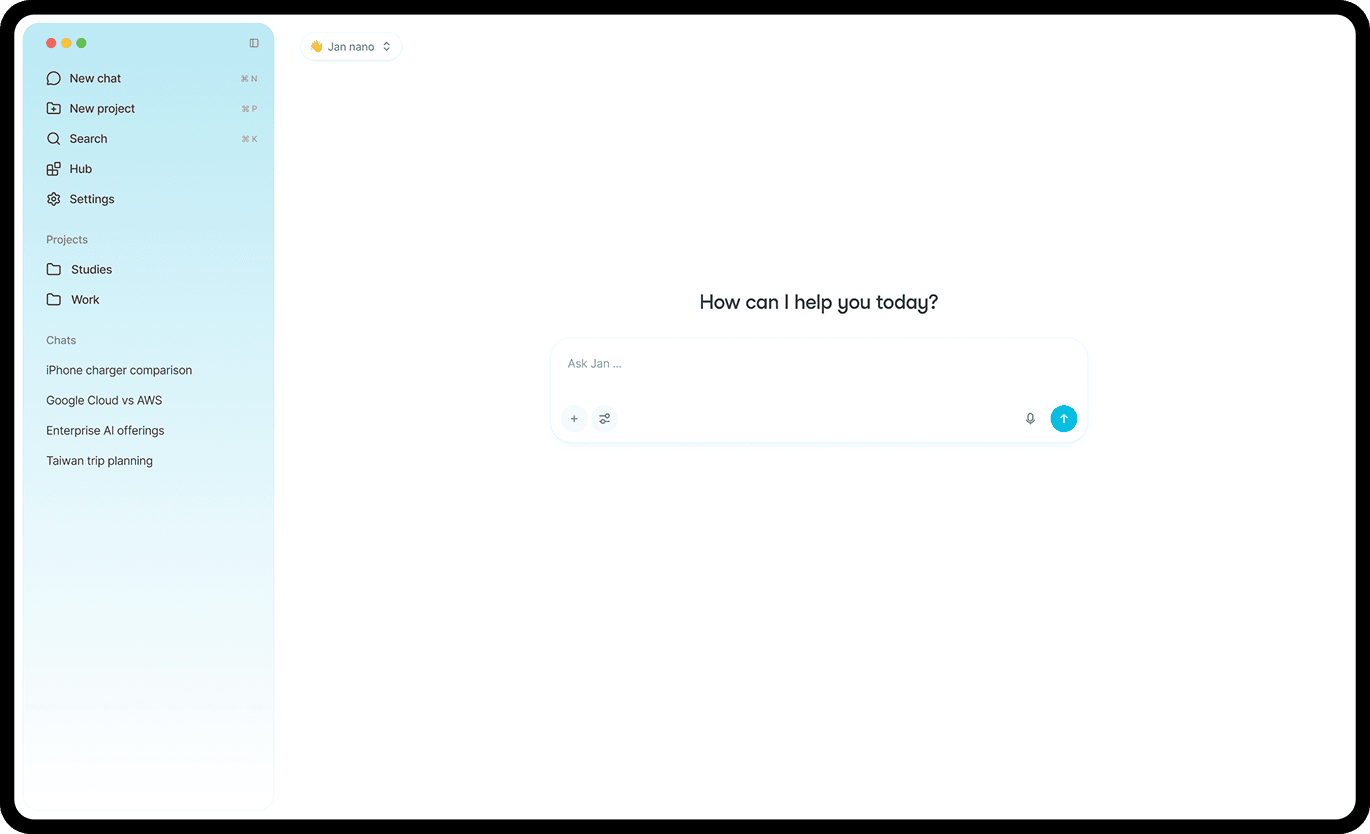
Jan Desktop gives you a familiar chat window for models that can run on your computer. This walkthrough takes you from the official download to a finished summary of a small set of notes. It follows Jan's current desktop documentation, checked on 13 October 2026. The examples are instructions for you to try, not a claim that AltStack tested every operating system. Start with a downloaded local model; you can decide later whether you need a cloud provider or tools that connect to the internet.
1. Understand what is free and what can cost money
Jan Desktop is free, open-source software under Apache 2.0. A model running locally does not charge you for each message and needs no provider API key. Your computer still supplies the processing power, storage and electricity. Downloaded models have their own licenses, so read a model's terms before using it commercially or redistributing it. The app's license does not replace those terms.
Cloud models are a separate choice. If you connect OpenAI, Anthropic or another provider, that provider's account, usage limits and API prices apply. Jan does not turn paid provider access into free access. This guide does not require a cloud subscription. Pricing and documentation were checked on 13 October 2026; check the provider's billing page again before enabling any paid connection.
2. Check your computer before downloading
Check the operating-system installation page linked below before choosing a package. Jan's current Mac guide supports Apple Silicon and macOS 13.6 or newer; it says Intel Macs are unsupported. On Windows, choose x64 or ARM64 according to your processor. The Windows and Linux guides list 8 GB of memory as a minimum and recommend 16 GB. These are application guidelines, not a promise that every model will fit.
Allow room for both the application and model files. Close memory-heavy applications before your first local chat. If you do not know your processor type on a Mac, open Apple menu > About This Mac. Plan to download one model first. Buying hardware before trying a small, suitable model is unnecessary for this introductory workflow.
3. Install the desktop app for your operating system
Use the download linked from Jan's official website. On a supported Mac, open the downloaded .dmg file, drag Jan into Applications, and launch it. On Windows, run the official .exe installer matching your processor, wait for it to finish, and open Jan. Choose the ordinary desktop release rather than a preview channel when you want a predictable introduction.
Jan currently recommends Flatpak on Linux. With Flatpak and the Flathub remote already set up, the documented installation command is flatpak install flathub ai.jan.Jan. Launch it with flatpak run ai.jan.Jan. If Flathub is not configured, follow Jan's linked Linux instructions first. The provider also documents .deb and AppImage alternatives. Use one installation method so updates and troubleshooting have a clear starting point.
4. Finish the first download and choose a local model
At first launch, the current quickstart says Jan downloads its default foundation model. Let this finish before expecting a useful local response. Initial setup needs an internet connection even when your later conversation will run offline. Review the tracking preference offered at first launch; Jan documents optional product analytics and lets you change your choice in Settings.
To choose another model, open Hub in the sidebar. Open a model's details and look at the hardware-fit indicator before pressing Download. Jan groups download sizes and marks models as fitting, possibly slow, or unable to fit. After download, select the model from a chat's model selector. A smaller suitable choice is a better first experiment than an impressive model name that exhausts your computer's memory.
5. Complete your first useful conversation
Start with information you can easily check. Type: Turn these notes into a short checklist. Keep the dates and numbers exactly as written. Do not add tasks that are not in the notes. Then paste a few non-sensitive lines about a meeting or a personal project. Read the result beside the original notes. Check each date, name and action before accepting it.
If the first answer is too long, ask: Keep only the five actions I need to do next, with one sentence for each. If an item was invented, point to it and request a correction. These prompts are examples rather than product commands. This small workflow lets you judge whether your selected model follows instructions without depending on its knowledge of recent events.
6. Create a project for related conversations
Once ordinary chat works, click New Projects in the left sidebar and give the project a clear name, such as Study notes or Product launch checklist. Jan's project documentation describes shared conversations, an assigned assistant and a common set of files. Start a conversation inside the project and explain what you want to accomplish. Keep separate projects for unrelated subjects so your instructions and reference files stay understandable.
For this walkthrough, use a project for one short document. Write down the desired output before adding more material: perhaps a paragraph summary followed by a list of decisions. Later, another conversation in the same project can ask for questions to review. Keep your source document available for checking; a project organization feature does not establish that an answer is factually correct.
7. Add a document and check the answer against it
Open the project and click Add in its Files panel. Select a supported document and wait for processing to finish. The current guide lists PDF, Markdown, Office documents and code files among the supported formats. For a single-message attachment, the chat input has a + button with the applicable attachment choices.
Ask: Summarize the decisions in this document. For each decision, include a short phrase from the source that helps me find it. Say when the document does not answer a question. Review those phrases in the original file; do not assume the model supplied reliable citations. Image attachment options require a vision-capable model. If an image option is missing, check model capability before troubleshooting the file. Start with a small document to separate setup problems from document complexity.
8. Save a usable result and protect your chat archive
For a simple export, select the final answer text, copy it, and paste it into your own document or notes app. Give the file a descriptive name and record the source document and model used. Correct errors in that saved result before sharing it. This manual method does not rely on an export button whose availability may differ between releases.
Jan also keeps local conversation data. Its data-folder guide describes threads containing messages.jsonl and thread.json. Settings > General > Jan Data Folder shows your active location if you have changed it. Before moving or removing app data, quit Jan and make a separate backup of material you want to retain. Copying an entire data folder may also copy settings, logs or credentials; protect the backup and do not upload it publicly for support.
9. Keep local chat separate from online tools
Local inference means the selected model computes its answer on your machine. It does not mean that every feature in the application operates without a network. Jan has web search and external connectors, and a cloud provider receives the content needed for its requests. The file-upload guide explicitly distinguishes local-model processing from sending files through a cloud provider API.
For private notes, verify the selected model is local and avoid invoking search or connectors. After setup, you can disconnect the network and try the same short, ordinary chat as a practical check of the local workflow. This check does not audit every background activity. Review optional analytics and your device's own backup or sync settings as well. Decide what may leave your computer before using workplace or customer information.
10. Solve common download and memory problems
If a download fails, first check disk space and your connection, then retry from Hub. If a downloaded model will not load, use a smaller or more heavily quantized model. Jan's troubleshooting guide explains that model size and conversation context both consume memory. Close other heavy applications and retry a short new conversation before changing advanced settings.
For repeated crashes, read the model error and open app logs from Settings > General > App Logs > Open Logs. Record the app version, operating system, selected model and the smallest prompt that reproduces the issue. Remove personal messages, file content and credentials before sharing logs. If a long chat stops working but a short new one works, the conversation may exceed its configured context. Increasing context also increases memory demand; it is not always the best fix.
11. Decide whether to keep the local setup or add a provider
Use the same three ordinary tasks for several sessions: summarize a small document, rewrite a paragraph and explain a concept you already understand. Record which answers needed correction and whether response speed is comfortable. Keep the local setup if it meets those needs. A cloud option can be useful for a workload your hardware cannot handle, but it changes both cost and data handling.
If you choose one, the current quickstart directs you to Settings > Model Providers, where you select the provider and enter its API key, then choose its model in chat. Set a provider-side spending limit if offered. Never paste a key into a conversation or publish it in a screenshot. You now have a complete first workflow: install, select, ask, verify, save and choose the appropriate privacy and cost boundary.
Official instructions and sources
Jan Desktop quickstartJan Mac installationJan Windows installationJan Linux installationJan model managementJan projectsJan file upload and privacyJan data folderJan troubleshootingJan privacy approachJan software licenseJan free desktop downloadOriginal AltStack guide by Sushil Kumar Sah. Installation steps follow provider documentation; they do not imply testing on every supported device.