

Ollama manages models and runs them through a desktop app, terminal or local API. You do not need to build an AI application to use it. This guide starts with a single local chat, then explains model management and an optional API request. Commands below are examples from current provider documentation or simple prompts for you to try; AltStack has not installed these packages on every platform. The documented steps and pricing were checked on 13 October 2026.
1. Separate free software from cloud plans
Ollama's software uses the MIT license, and running a downloaded model on your own computer has no Ollama per-message fee. Your hardware, electricity and storage are still your responsibility. A model can carry separate terms from the runtime, so check its model page and license before using it in a commercial product.
The cloud service has its own pricing. At the review date, the official page lists a $0 plan with starter usage credits and paid credits for broader cloud access, Pro at US$20 per month or US$200 billed annually, and Max at US$100 per month. Cloud usage consumes credits under model-specific rates. These plans are optional for this local walkthrough; do not assume a free account provides unlimited hosted inference.
2. Choose a model your computer can handle
A model's download size and its working-memory needs are different. The file needs disk space, while generating an answer also uses memory for the model and conversation. Larger context windows increase the demand. Start with the current quickstart's local example, gemma4:e2b, only after checking its download choices and fit for your machine on the official model page.
Ollama's quickstart currently recommends around 8 GB of available VRAM or Mac unified memory for that example; machines with less can use system RAM but may respond more slowly. This is guidance for that model, not a universal requirement for Ollama. You can choose another documented smaller model if necessary. Avoid downloading several large variants until one basic conversation works comfortably.
3. Install Ollama on macOS, Windows or Linux
Download from Ollama's official site. The current macOS guide requires Sonoma 14 or newer, with Apple M-series acceleration or x86 CPU-only support. Mount the .dmg, move the app into Applications, and open it. If prompted, allowing the documented command-line link makes ollama available in Terminal.
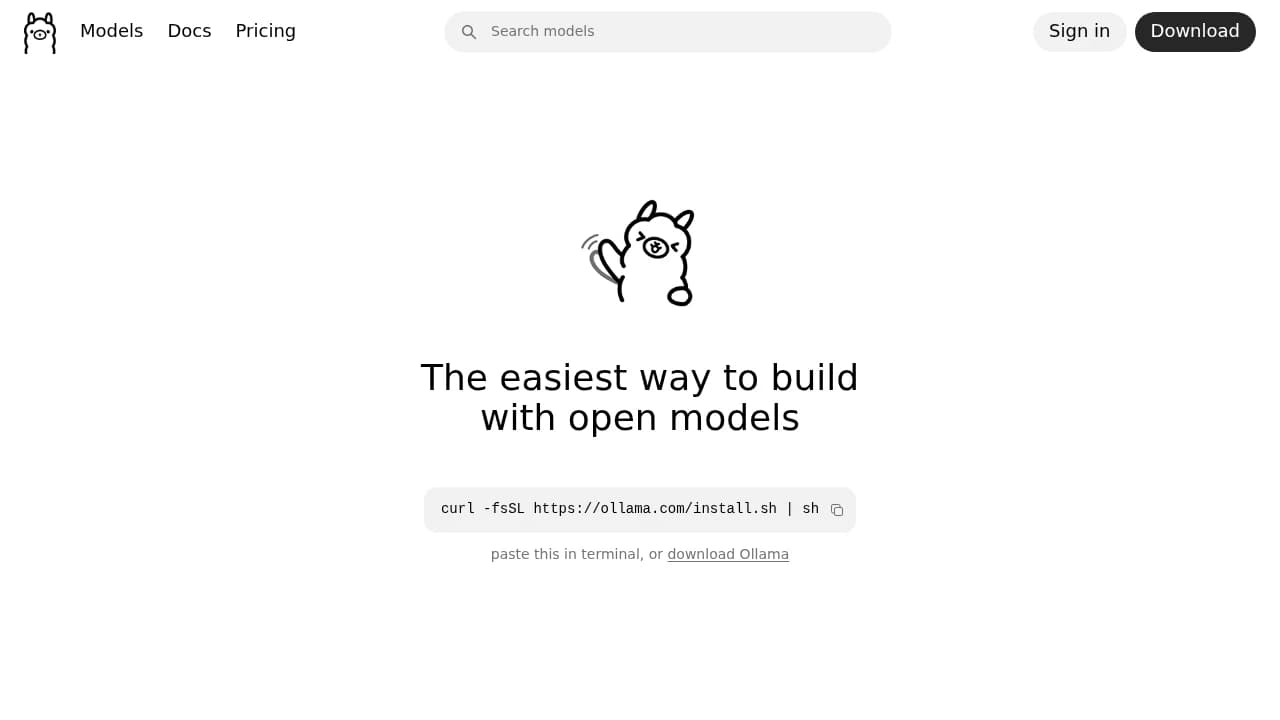
On Windows, the official guide supports Windows 10 22H2 or newer. Use OllamaSetup.exe and launch the application; the installer makes its CLI available to your terminal. On Linux, the provider's documented installation command is curl -fsSL https://ollama.com/install.sh | sh. That command downloads and executes the provider's script: read the linked installation guide and script before running it. Do not run all three operating-system methods. After installation, open a fresh terminal and check ollama --version.
4. Start the service and download one local model
On desktop installations, open Ollama first. Its quickstart also lets you begin by entering ollama and following the setup prompts. Choose a local model for this guide. Signing in is needed for cloud access, not for an ordinary downloaded local model.
In a terminal, enter ollama run gemma4:e2b. The documented command downloads the model if needed and opens a chat. Wait for the download to finish; an initial wait is not a measure of future answer speed. On Linux, if no server is running, start ollama serve in one terminal and use the run command in another. If the service is already active, you do not need a second server. Keep the exact model name so later commands refer to the same installation.
5. Turn a rough note into an answer you can use
At the chat prompt, enter a small task: Rewrite this note as a polite email. Keep it under 100 words. Do not add promises or dates. Then supply a few lines of non-sensitive text. Follow up with: Make the request in the first sentence and remove unnecessary detail. Compare the finished answer with your original before copying it anywhere.
A useful beginner test has a clear answer you can evaluate. Check whether the model kept facts, changed the tone as requested and stayed within the length. If it invents a deadline, explicitly ask for a revision. Local execution does not make generated facts trustworthy. Keep medical, legal or financial decisions outside this introductory experiment and use the model for a draft you can review.
6. Save the result and record the model used
Copy the final answer from your terminal or app into a text editor, review it and save it under a descriptive filename. Record gemma4:e2b, the date and any important prompt instructions next to the result. A saved document is easier to reuse than a terminal window that may disappear when you close it. Type /bye to leave the documented terminal chat.
When you want to repeat a workflow, keep a small prompt file containing your requested tone, length and constraints. Reuse the instructions with new source text rather than assuming a fresh chat remembers the previous one. This manual saving method is intentionally independent of app-specific history or export controls. For private text, also consider whether your chosen document folder is synchronized to a cloud backup.
7. Inspect, stop and remove downloaded models
Use ollama ls to list installed models. The model you downloaded should appear with its exact name. Use ollama ps to see models currently loaded in memory. The processor column helps you identify whether computation is on GPU, CPU or a combination. These commands inspect different things: an installed model can remain on disk even when it is not loaded.
To release the example model from memory, use ollama stop gemma4:e2b. To remove its downloaded files, use ollama rm gemma4:e2b only when you no longer need it. Stopping and removing are different actions, and removal means a future run needs another download. Before changing storage locations or deleting application folders, keep any configuration or saved work you still need.
8. Try the local API after ordinary chat works
An API lets another program request an answer from your running model. Ollama's local service normally listens on http://localhost:11434. On macOS or Linux with curl available, an example request is: curl http://localhost:11434/api/generate -H 'Content-Type: application/json' -d '{"model":"gemma4:e2b","prompt":"Explain a checklist in one sentence.","stream":false}'. This uses the installed local model and requests a single JSON response.
Read the response field for the generated text. If you see a connection error, first check the app or service is running. If the model is missing, confirm its exact name with ollama ls. Windows shell quoting differs; use the PowerShell example in the Windows documentation as a syntax reference and substitute your installed model. The chat workflow works without writing any API code.
9. Keep your local server private
The provider's FAQ says Ollama binds to 127.0.0.1 on port 11434 by default. Keep that local binding for personal use. Do not change it to a public network address or expose it through a tunnel just to complete this guide. A separate application, connector or cloud model can change where your content goes.
Ollama documents local-only mode through disable_ollama_cloud in server.json or OLLAMA_NO_CLOUD=1, followed by a restart. This disables its cloud models and web search. Consult the platform-specific environment instructions before configuring it. For cloud-hosted inference, the provider says it processes prompts and responses to supply the service; that is distinct from local computation. Review its current policy and your connected applications before supplying confidential text.
10. Troubleshoot speed, missing commands and memory
If your terminal cannot find ollama after installation, open a new terminal and review the platform guide's command-path instructions. If a request cannot connect, open the app or check the Linux service. If the model loads but answers are slow, inspect ollama ps, try a smaller model, shorten the prompt and close other memory-heavy programs. Do not assume buying a cloud plan fixes a local installation problem.
For repeated failures, retain the exact error, version, operating system and model name. The platform documentation identifies local log locations. Review log content before attaching it to an issue, because application context may be sensitive. For model compatibility or GPU-specific errors, use the provider's current hardware documentation; arbitrary driver changes copied from unrelated tutorials can make diagnosis harder.
11. Know when a cloud model is a different choice
A model ending in :cloud in the app or CLI runs on Ollama's servers rather than your computer. Cloud models do not require a local model-file download and can be useful when your device cannot handle a larger workload. They require an account and are subject to the service's model prices and usage allowances. Check your usage and current pricing before enabling them.
Compare a local model and a cloud option with the same short task only after you understand both settings. Record response usefulness, waiting time, corrections and actual spending. Your successful first setup is a downloaded model that produces a reviewed, saved answer. Adding a browser interface, coding agent or server deployment can come later, with its own permissions, operating requirements and costs.
Official instructions and sources
Ollama quickstartOllama macOS installationOllama Windows installationOllama Linux installationOllama command referenceOllama local API generate endpointOllama FAQ and local-only configurationOllama cloud documentationOllama current cloud pricesGemma 4 model sizes and local tagsOllama MIT licenseOriginal AltStack guide by Sushil Kumar Sah. Installation steps follow provider documentation; they do not imply testing on every supported device.