

NewPipe is a free Android app for accessing supported video and audio services without signing into them. This guide focuses on an ordinary public YouTube video and a local subscription list. NewPipe does not supply a paid streaming catalog or replace a Google account’s private features. The steps follow the project’s primary documentation checked on October 13, 2026; AltStack has not performed a device-by-device installation test. Keep existing app data backed up before changing where you obtain updates.
1. Pricing and requirements before installation
NewPipe is available free of charge under GPL-3.0. The official project describes donations as support for development, not a required subscription. For this workflow, you need a supported Android phone or tablet, currently Android 6 or later, internet access and space for app data. Downloaded media, if you have permission to save it, needs additional storage.
Your mobile-data plan and the rights attached to a video or song remain separate from the app’s price. NewPipe is an alternative client, not a YouTube Premium account or a way to obtain purchases, memberships or subscription-only content. It is useful for a local viewing and listening workflow. If your main need is posting comments, managing a creator account or account-specific purchases, use the relevant official service workflow instead.
2. Install through the official NewPipe F-Droid repository
The project recommends adding its own repository to F-Droid for timely official updates. Install the F-Droid client from its official website if you do not already have it. On newpipe.net, open the tutorial for adding the NewPipe repository and use its repository link or QR code. Let F-Droid display the repository information and complete its index refresh before searching for NewPipe.
In the app listing’s Versions area, choose the package whose repository is NewPipe upstream repository. Follow Android’s permission prompts for the installer you chose. Grant installation permission only to that specific installer when required, rather than enabling unrestricted installation for every application. Use the project’s current instructions if your F-Droid interface differs. If you already installed a different NewPipe build, stop and make the backup described below before replacing it; Android checks signing identities when updating an app.
3. Use an official APK only when you prefer that route
Another supported route is the APK linked from newpipe.net or the TeamNewPipe/NewPipe release page. Download an actual release APK, then open it through your browser or file manager and follow Android’s installation prompt. Consult the project’s signing-key information if you need to verify the package’s origin. Avoid similarly named Play Store listings or third-party download advertisements.
Updates from the NewPipe upstream repository and its official release APK use the project’s signing key. The default F-Droid build uses a different key, so those update paths are not interchangeable. An update refusal can be Android protecting the existing app, rather than a broken download. Do not remove that protection or uninstall impulsively. Export the database, verify that the backup file exists, and then follow the official source-switching instructions if changing channels is necessary.
4. Complete your first search and playback
Open NewPipe, select YouTube as the service for this exercise and search for a creator or tutorial. Open a short public video you recognize. Start normal playback and check sound, picture and seeking. If captions are available for that item, select them through the player’s controls. Begin with one clip before importing a large feed or changing many playback options.
This gives you a clear baseline: the app launches, search results appear and a normal public video plays. NewPipe does not require a Google login, and it does not synchronize the test with your Google watch history. Its extractor depends on the service’s current responses. A private, removed or restricted upload is therefore a poor first installation test. If the same public clip fails broadly, look for a documented service or extractor problem rather than repeatedly reinstalling the app.
5. Choose background or popup playback
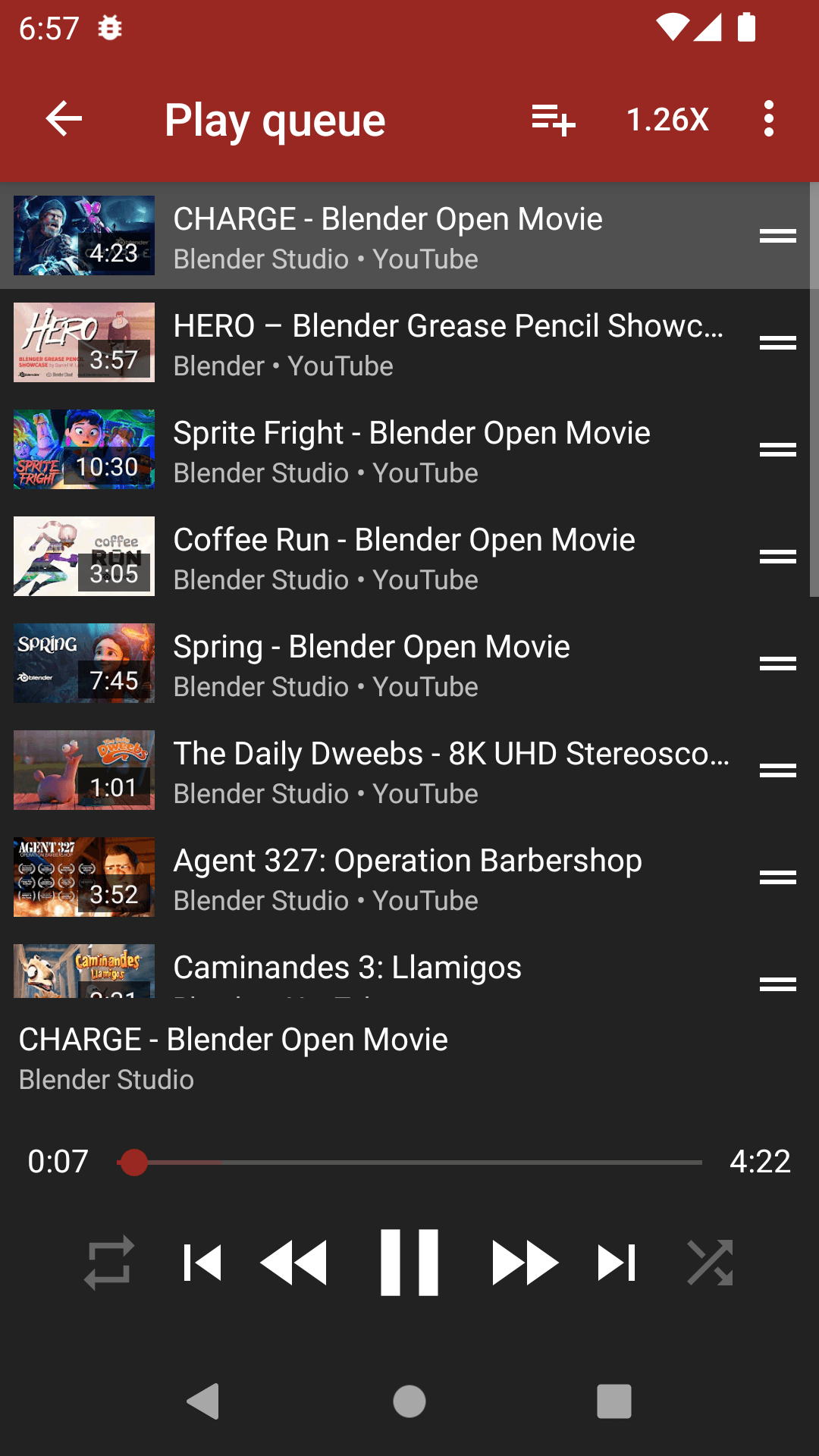
On a supported video’s detail page, use the background playback option when you only need its audio. This is useful for a lecture while you read notes in another app. NewPipe’s background mode requests the audio stream rather than the full picture, which can reduce data use for that particular task. Use the popup player when you need a small visible video while moving between screens.
Android may request permission for a floating player. Allow it only if you want that feature. If background audio stops, first examine your phone’s battery-management settings for NewPipe and the project’s device-specific guidance. A phone manufacturer can restrict background work even when playback worked in the foreground. This guide does not promise identical behavior on every Android device or permanent compatibility with every upstream service.
6. Build a small subscription feed and local playlist
Open a channel and select Subscribe to add it to the app’s local subscriptions. Add a second channel, then open Subscriptions and check the feed. The project supports channel groups when you want to separate subjects such as study and entertainment. Start with a manageable list, since refreshing many channels produces many service requests.
For a listening session, enqueue a few related public videos and use the app’s local-playlist controls to save that sequence. Give it a descriptive name such as Photography lessons rather than leaving an anonymous queue you cannot recognize later. These subscriptions and playlists belong to NewPipe’s local database; they do not create a playlist or subscription on your Google account. Verify that your saved list still appears after reopening the app before relying on it as your only record.
7. Import YouTube subscriptions with a limited export
In your browser, visit Google Takeout and export only the subscriptions portion of YouTube and YouTube Music. Keeping the export narrow avoids bringing unnecessary personal data into the transfer. Wait for the archive and download it to a folder your phone can access.
In NewPipe, open the subscriptions page’s Import / Export controls. Choose the YouTube import, select its import-file option and provide the Takeout ZIP as described by the official tutorial. FreeTube’s CSV workflow and NewPipe’s ZIP workflow are different, so use this app’s instructions rather than assuming every client accepts the same input. After importing, open several known channels to confirm the result. A list transfer does not authenticate NewPipe to Google, transfer paid access or keep subsequent account changes synchronized. Keep the export private and remove unnecessary copies when you finish the migration.
8. Back up subscriptions separately from the whole database
The subscriptions export creates a portable list of followed channels. Use it when that list is all you want to transfer. For the complete app state, open Settings, then Backup and restore, then Export database. The documented database backup includes local playlists, settings and enabled search or watch history in addition to subscriptions. Save a dated copy outside the app and confirm the file is present before uninstalling.
To restore the full backup, use Import database in the same settings category. This replaces the current app database and cannot be undone through that import screen. Export the current state first if it contains anything you might still want. Do not assume a subscription JSON and a complete database backup are interchangeable. Use backups from the official app for an official-app restore; the maintainers warn that databases from other builds or forks can be incompatible.
9. Save permitted files and choose an accessible folder
NewPipe offers downloads for supported video, audio and caption streams. Use that feature only for material you own or have permission to download, following the service’s applicable terms. Choose the file type and quality shown for the particular item. A larger resolution means a larger download; try a small permitted sample before starting a long transfer on mobile data.
On recent Android versions, use the system folder picker to select a dedicated accessible folder, such as a new NewPipe folder, and grant access to that folder. The project warns against selecting restricted storage roots or the top-level Download directory on Android 11 and later. Offline playback uses an external media player according to its FAQ. Audio is not automatically MP3: some available streams are M4A or WebM, so choose a compatible player rather than merely renaming the file extension.
10. Troubleshoot while keeping privacy and data intact
If a service stops working, check your installed version and the official release notes first. An extractor update may be needed after the service changes. For a rate-limit or bot-confirmation response, pause requests and consult the project’s current issue reports; repeated refreshes are unlikely to repair it. Do not use this guide to evade service protections or obtain restricted content.
If downloads or exports fail, reselect the permitted folder and check its access, available space and Android file-picker support. If an update fails, check the signing-source mismatch before deleting anything. NewPipe stores its personal app data locally, but services still receive the network requests needed to fetch content. Protect device backups accordingly. A useful fault report contains app version, Android version and a public example, with personal history, private archives and identifiers omitted.
Official instructions and sources
Official app, free pricing and Android requirementsOfficial features, software license and installation routesNewPipe upstream F-Droid installation tutorialUpdate signing-key compatibilitySubscription import and database backupDownload formats and Android folder accessOffline playback requirementsAccount limits and troubleshootingOfficial GPL software licenseOriginal AltStack guide by Sushil Kumar Sah. Installation steps follow provider documentation; they do not imply testing on every supported device.