

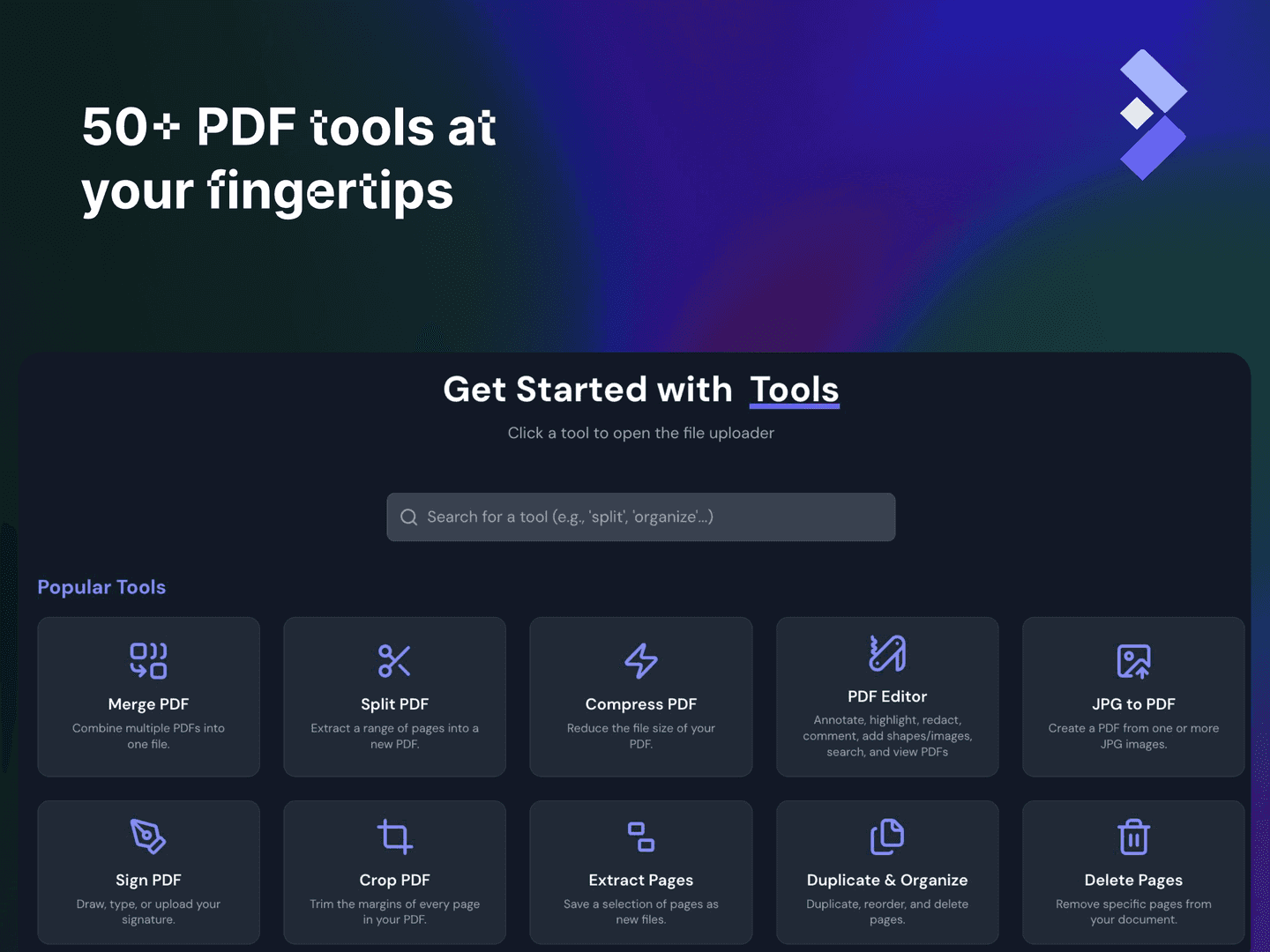
BentoPDF is a free, open-source toolkit for common PDF jobs. It can replace an Acrobat Pro subscription for some everyday tasks, such as combining files or extracting pages. Choose it for a particular job rather than assuming it replaces every Adobe feature. This guide follows the provider’s published instructions, checked on October 13, 2026; AltStack has not independently tested every conversion. Keep your originals and inspect each downloaded result before sharing it.
1. Open BentoPDF and choose your task
Open bentopdf.com in a modern browser. Search for the task you need, such as Merge PDF or Split PDF, and open its tool. Select files through the file area, or drag them into it. The provider describes the document processing as local to your device. The public toolkit does not require an account.
Begin with a small working copy and one clear goal. For example, combine a cover letter and résumé, keep four pages from a report, or make an attachment fit an upload limit. Save the result before closing the tab; the browser session is not document storage. Retain an untouched original until you have checked the output.
2. Merge PDFs in the correct order
Open Merge PDF and select the documents to combine. In File Mode, drag the file entries into their intended order. Leave a file’s Pages box empty to include all its pages, or enter a selection such as 1-3, 5. For page-by-page arrangement, use Page Mode and drag the thumbnails into sequence. Select Merge PDFs and download the result.
Open the new document and check its first page, the joins between inputs and its final page. The tool can keep original page labels, but identical labels from different inputs can be confusing. Choose that option only when you need it. Give the completed document a descriptive name instead of overwriting an original.
3. Extract pages or split a large PDF
Open Split PDF and select one PDF. Choose the page-range extraction mode. Enter a selection such as 1-3, 7 to keep the first three pages and page seven. Choose a single combined PDF for one extract, or one PDF per range for separate documents. Select Split PDF and save the output. Multiple results download as a ZIP.
For a visual selection, choose that mode and select the page thumbnails. Another mode creates a separate file for every page. Check actual page positions: a cover or Roman-numbered introduction can make printed numbers differ from PDF page positions. Open the extracted files and verify that no intended page is missing.
4. Compress a file and check readability
Open Compress PDF and select the file. Start with the Condense algorithm and a moderate level, such as Balanced. Light is a useful starting point when print detail matters. Select Compress PDF, save the output and compare its size with the original. Inspect small text and images before trying stronger compression.
Photon renders pages as images, removing selectable text and working links. Use it only if that tradeoff suits your task. Savings depend on the input; an already optimized document may barely shrink. For an upload limit, reduce quality gradually and inspect each attempt. Keep the smallest version that still reads clearly and preserves the functions you need.
5. Turn photos into a PDF
For JPEG photos, open JPG to PDF and choose the images in the order you want. Page sequence follows the file list; check it before conversion. Choose PDF Quality, select Convert to PDF and save the output. A higher-quality setting is useful when small writing or later OCR needs detail.
For PNG, HEIC or mixed formats, use the matching converter or Images to PDF instead. Photograph paper with even light and without clipped corners. Check orientation and legibility in the downloaded PDF. Combining photos creates a document; it does not automatically make photographed words searchable. Keep the source images so you can retry with a better scan.
6. Make scanned text searchable with OCR
If you cannot select words in a scan, open OCR PDF and add the file. Under Languages in Document, choose the languages on its pages. Adjust resolution if needed, then select Start OCR. When processing finishes, select Download Searchable PDF to save a PDF with a text layer, or Download as .txt to save recognized text.
Proofread names, dates and amounts. Similar characters can be confused, and the provider says handwriting is not recognized reliably. Higher resolution can take longer and use more resources. The engine and language packs may need downloading on first use even though documents are processed locally. A successful OCR job does not establish that every word is accurate.
7. Convert PDF to Word and repair the layout
Open PDF to Word, add your PDF and start conversion using the processing control shown by the tool. Save the DOCX output and open it in your document editor. If the input is a scan without a text layer, run OCR first and convert that searchable result.
The provider warns that columns, graphics, forms and unusual fonts can shift. Compare headings, tables, line breaks and the last page against the original. Correct the output before sending it. PDF conversion reconstructs editable content; it does not recover the original authoring file perfectly. If you already have that source file, editing it directly is usually easier.
8. Choose text editing or annotations
Use Edit PDF Text to change existing paragraphs. The documented workflow lets you select a paragraph and adjust its text and styling. Use the general Edit PDF tool for annotations such as highlights, comments, shapes and added text. Save your work and reopen the result to check placement.
A comment over a page and an edit to its underlying text solve different problems. For forms, check the form-filling tool instead of drawing text over fields by default. If a specialist Adobe feature is essential, compare a representative file before switching applications. Useful PDF features do not establish complete parity with Acrobat Pro.
9. Understand privacy, setup and failed jobs
BentoPDF’s public pages describe local processing and free personal use. Device memory, browser support and document complexity still affect performance. If a job stalls, keep the original, try a smaller file or batch, close other heavy tabs and consult the tool’s official requirements. Advanced processing modules may need separate configuration on self-hosted installations; follow the project’s setup guidance rather than guessing module URLs.
Running your own instance can incur hosting and maintenance costs. The project provides an AGPL community license and separate commercial terms for some proprietary uses; check its current licensing page before product integration. Local processing does not certify every deployment for regulated data. Finish by verifying page count, readability, search and links, saving the output somewhere reliable and retaining the original.
Official instructions and sources
Official BentoPDF toolkitMerge PDF instructionsSplit PDF instructionsCompression settings and limitationsJPG to PDF instructionsOCR PDF instructionsPDF to Word limitationsOfficial editing toolsProject license and setupCurrent licensing termsOriginal AltStack guide by Sushil Kumar Sah. Installation steps follow provider documentation; they do not imply testing on every supported device.